 By Veronique Lengelle
When organisations enable File Upload for Copilot Studio agent(s), users will be able to have a conversation with the agent and ask questions about the files they attach. But it’s very common for users to start the conversation and not upload the file, all within the same interaction before pressing Enter!
So in today’s post, we’ll see how to check if a file was uploaded by the user at the same time of asking a question, and simply respond with the content 🙂
Enable File Upload
In your Copilot Studio agent, navigate to Settings (top right), and under Generative AI, and make sure that File uploads is turned on. In my case, I’ve also turned off Use general knowledge, but this is up to you and your own use case.

Create a Topic
Now let’s create a specific Topic to handle the user query and check if a file was uploaded.
Go to the Topics tab, + Add a topic, and then From blank. Don’t forget to rename your topic, and give a description as to what the topic does (in the trigger).
NOTE: You can also choose a different trigger instead of “the agent chooses”. For example, use “An activity occurs” and then check is Activity.Attachments is empty. Here’s a list of triggers for Topics: Set topic triggers.
Condition
The logic here is to check if a file was uploaded straight away, or if we need to ask the user to upload the file for analysis. We’ll add a Condition, and verify if the built-in variable Activity.Attachments is empty
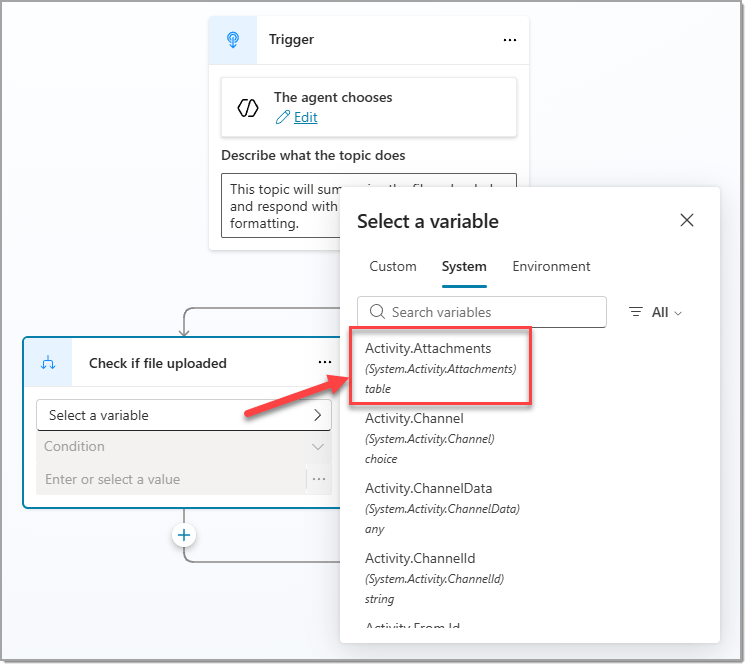
And then ask the user to upload a file for analysis.
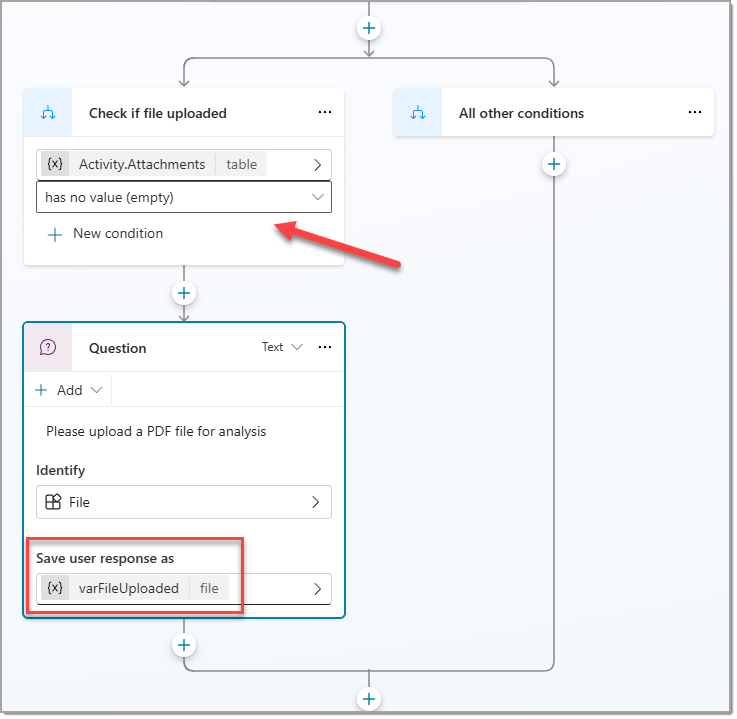
Our last step is just to add a message on the All other conditions of the branching 🙂
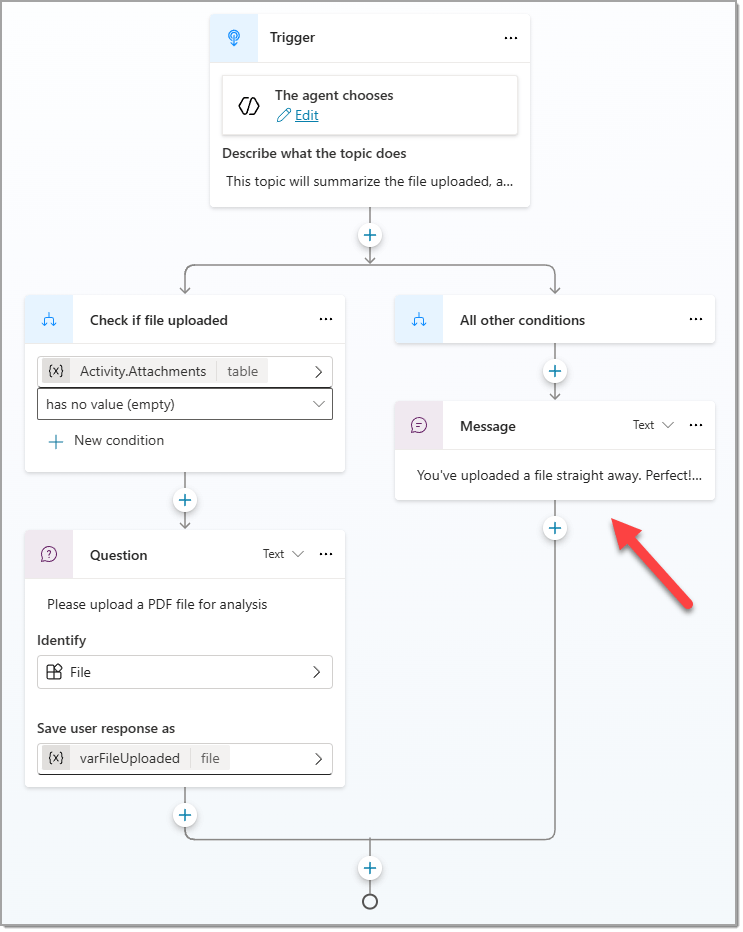
Important: In this scenario, we’re only “reading” the document and we’re not passing it to an Agent flow as an input. If you need to use this file in a flow, it will need to be as varFileUploaded | record. To do that, select your node, go to Properties, then Entity recognition, and check the box Include file metadata.
Testing the agent
Let’s test the agent to see the results. Below is what’s in my SampleDoc.pdf file

Testing with the file sent WITHIN the first interaction:

Testing with the file sent AFTER the first interaction:

Conclusion
There are still many other possibilities when you enable file uploads. You can be fancy by adding a custom prompt in your process, make sure the file uploaded is the expected format for your agent purpose (i.e.: .pdf, .docx, etc), or prevent users from uploading multiple documents!
Thanks for reading! 🙂